
How to Access Telehealth Services: 2026 Guide
TL;DR:
- Telehealth allows remote medical care through digital devices, making access easier and more convenient. Proper preparation, including testing technology and understanding platform permissions, ensures a smooth virtual visit. It is most effective for minor illnesses, follow-ups, and managing chronic conditions, but cannot fully replace in-person examinations and procedures.
Telehealth is defined as remote medical care delivered through digital devices like smartphones, tablets, or computers, connecting you with licensed providers without an in-person visit. Knowing how to access telehealth services correctly makes the difference between a smooth, productive appointment and a frustrating technical failure. This guide covers every step, from checking your technology to joining the virtual waiting room, including the 2026 Medicare coverage updates that now make telehealth permanent and broadly accessible. Whether you are managing a chronic condition, following up after a procedure, or seeking care during a health crisis, this telehealth access guide gives you everything you need.
What technology do you need for telehealth?
The right device and a stable internet connection are the two non-negotiable requirements for any telehealth visit. Most smartphones, tablets, and computers made after 2015 include a built-in camera and microphone, which means you likely already own a compatible device. What matters most is that your device can run a current web browser like Google Chrome, Mozilla Firefox, or Safari, since most telehealth access happens through secure browser links rather than dedicated apps.
Internet speed is the next factor. A stable connection of at least 10 Mbps download supports clear video. If your connection is slower or unreliable, audio quality degrades first, then video freezes. Approximately 1 in 5 U.S. homes lack reliable internet, which is why audio-only phone visits remain a fully valid option. The federal Lifeline program provides at least a $9.25 monthly discount on internet or phone service for eligible low-income households, making connectivity more reachable.
Your physical environment matters as much as your hardware. Choose a private room with good lighting in front of you, not behind you. A window behind you creates a silhouette that makes it hard for your provider to see your face clearly.

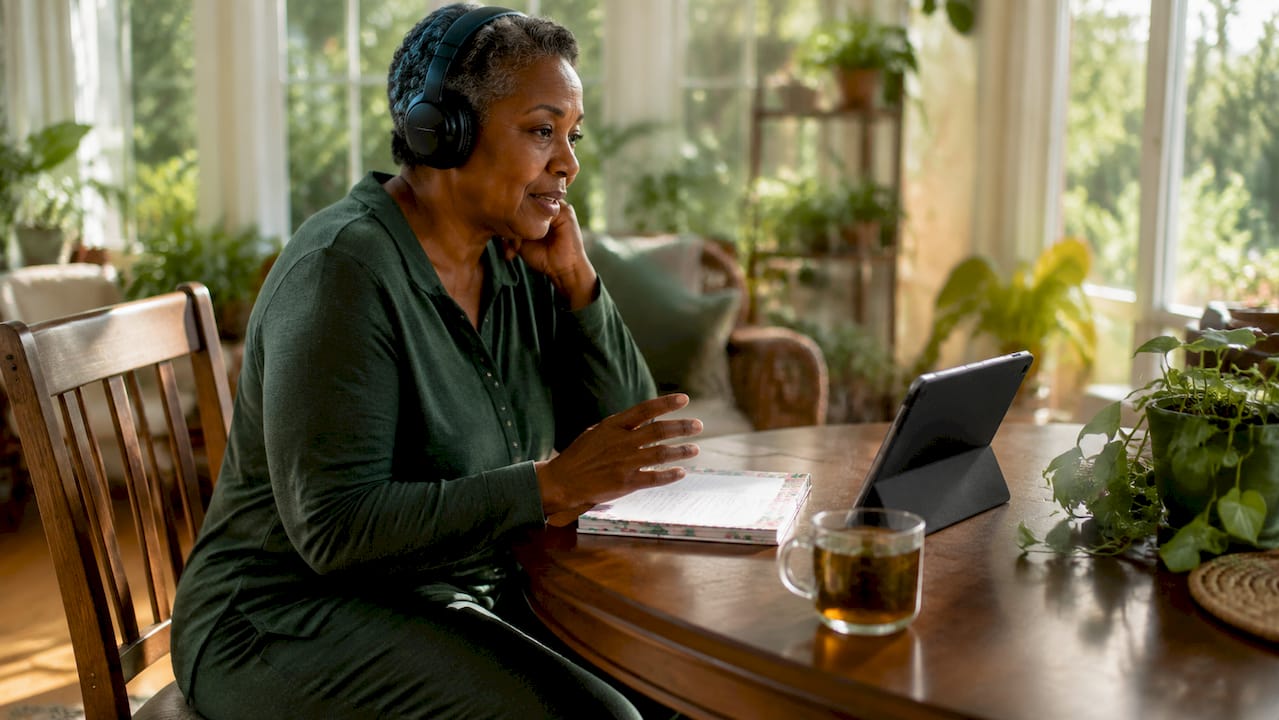
Pro Tip: Use headphones with a built-in microphone during your telehealth visit. They reduce background noise and protect your privacy if others are nearby, which is a shared responsibility between you and your provider.
| Device | Minimum Requirement | Notes |
|---|---|---|
| Smartphone | Camera, mic, data or Wi-Fi | iOS or Android, updated OS |
| Tablet | Camera, mic, Wi-Fi | iPad or Android tablet works well |
| Laptop/Desktop | Webcam, mic, broadband | External webcam improves quality |
| Landline Phone | None | Audio-only fallback option |
How to schedule and prepare for your telehealth appointment
Scheduling a telehealth visit follows the same general process as booking an in-person appointment, with a few added steps specific to virtual care. Start by confirming your insurance coverage. As of 2026, Medicare provides permanent telehealth coverage without geographic restrictions, and many private insurers now match in-person copays or offer $0 copays on designated platforms. Call your insurer or check your member portal before booking to avoid surprise costs.
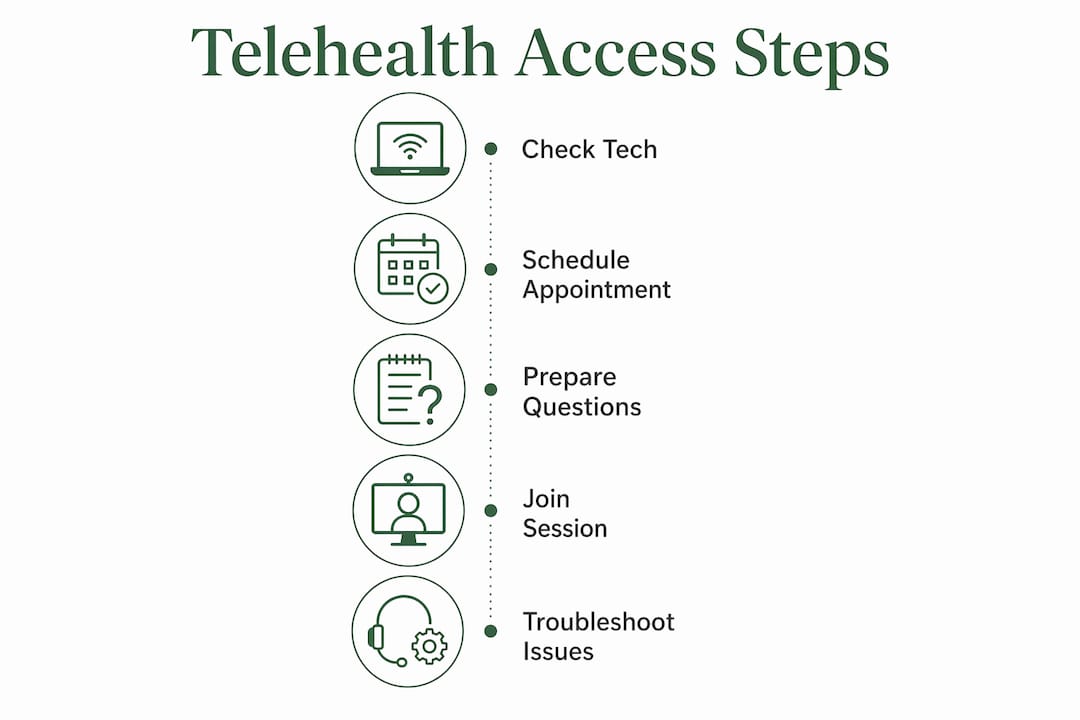
Once coverage is confirmed, schedule through your provider’s patient portal, your insurance company’s app, or by phone. Portals like MyChart, used by many health systems, let you request a telehealth visit directly and receive a secure link by email or text. If your provider uses a different system, the front desk will walk you through the steps.
Preparation before the appointment is where most patients fall short. Follow these steps to be ready:
- Test your device at least 15 minutes early. Testing audio, video, and internet before the appointment prevents delays and lets you complete virtual check-in without stress.
- Check browser or app permissions. Your device must allow the telehealth platform to access your camera and microphone. Go to your browser settings or phone settings and confirm these are enabled.
- Set up your space. Sit in a well-lit, private room. Position your camera at eye level so your provider can see your face clearly.
- Gather your health information. Have your current medications, a list of symptoms, and any questions written down before the visit starts.
- Confirm your backup plan. Agree with your provider’s office on a phone number to call if the video connection fails.
Pro Tip: Write down your top three questions before the appointment. Patients who prepare questions in advance get more out of a 15-minute virtual visit than those who rely on memory alone. Review appointment preparation tips to build a strong pre-visit routine.
How do you join and troubleshoot a telehealth session?
Joining a telehealth session typically takes three steps: click the secure link sent by your provider, enter a virtual waiting room, and wait for the provider to admit you. The process is similar to a video call on FaceTime or Zoom, but the platform is HIPAA-compliant and specific to healthcare. When the link opens in your browser, you will likely see a prompt asking permission to use your camera and microphone. Click “Allow.” If you skip this step, the provider will not be able to see or hear you, even if your hardware works perfectly. Understanding browser permissions is one of the most common fixes for failed connections.
Technical problems do happen. The table below covers the most common issues and their solutions.
| Problem | Likely Cause | Fix |
|---|---|---|
| No video | Camera permission denied | Enable camera in browser/app settings |
| No audio | Mic permission denied or muted | Check mic settings; unmute in platform |
| Frozen screen | Slow internet | Move closer to router; close other tabs |
| Can’t open link | Outdated browser | Update Chrome, Firefox, or Safari |
| Kicked out of session | Connection dropped | Rejoin via the original link |
If video fails entirely, switching to a phone call is a fully acceptable backup. Agree on this plan with your provider’s office before the appointment starts so neither side wastes time troubleshooting during the visit.
Pro Tip: Close all other browser tabs and apps before your telehealth visit. Streaming services, video calls, and large downloads compete for bandwidth and are the most common cause of frozen video.
Privacy during the session is your responsibility as much as your provider’s. Use headphones, close the door, and avoid public spaces like coffee shops or waiting rooms. Your provider’s platform is HIPAA-compliant, but what people around you can overhear is not protected.
What are the limitations of telehealth services?
Telehealth works well for a defined set of medical needs. Minor illnesses like sinus infections, urinary tract infections, and rashes are well-suited to virtual visits. Medication refills, follow-up appointments after procedures, and mental health counseling are among the most common and effective uses of telemedicine. Chronic condition management, including diabetes check-ins, blood pressure reviews, and asthma monitoring, also translates well to virtual care.
Telehealth cannot fully replace in-person care where physical exams are required. If you need blood work, imaging, a physical examination, or a procedure, you will need to visit a clinic or hospital. Telehealth is a complement to in-person care, not a substitute for it.
One practical concern many patients overlook is record fragmentation. Using an independent telehealth app instead of your primary care provider’s portal can scatter your prescriptions, lab results, and visit notes across multiple systems. Staying within your provider’s portal keeps your records centralized and your care coordinated.
Accessibility is another area worth planning for. If you need an interpreter, captioning, or plain-language summaries, request these services at scheduling, not on the day of the appointment. Proactive requests give the care team time to arrange the right support, which leads to better communication and a more productive visit.
Telehealth works best when you treat it with the same preparation you would give an in-person visit. The technology is the medium, not the care itself.
Key takeaways
Successful telehealth access depends on three things: the right technology, thorough preparation, and knowing your options when problems arise.
| Point | Details |
|---|---|
| Confirm insurance first | Medicare permanently covers telehealth in 2026; check private plan copays before scheduling. |
| Test technology early | Check audio, video, and browser permissions at least 15 minutes before your appointment. |
| Use your provider’s portal | Scheduling through your primary care portal keeps records centralized and care coordinated. |
| Have a backup plan | Agree on a phone number with your provider in case video fails during the session. |
| Request accessibility support early | Ask for interpreters or captioning at scheduling, not on the day of the visit. |
What i’ve learned after years of watching patients struggle with telehealth
The biggest barrier to a good telehealth experience is not the technology. It is the assumption that it will just work. I have seen patients log in from a bright window, wonder why their provider cannot see them, and spend the first five minutes of a 15-minute appointment troubleshooting lighting. I have seen others miss their visit entirely because they did not know their browser needed permission to access the camera.
The patients who get the most out of virtual visits are the ones who treat preparation as part of the appointment itself. They test their setup the night before. They write down their questions. They know their medications by name and dosage. That level of readiness does not require technical expertise. It requires the same mindset you bring to any important meeting.
The 2026 insurance changes matter more than most people realize. Medicare’s permanent telehealth coverage removes the geographic barriers that used to limit rural and homebound patients. That is a real shift in access. But coverage alone does not help if you do not know how to use the technology or how to make the most of your visit.
My honest advice: start with your primary care provider’s portal. Do not download a third-party app just because it looks convenient. Your records, your prescriptions, and your care history all belong in one place. Fragmented records create fragmented care, and that is a problem that shows up months later when a new provider does not have the full picture.
Telehealth is genuinely useful. It removes real barriers for people managing chronic conditions, caring for family members, or living far from a clinic. Use it well, and it becomes one of the most practical tools in your healthcare routine.
— Krunal
How Gardenstatemedicalgroup makes telehealth easier for you
Gardenstatemedicalgroup offers telehealth visits for primary care and chronic condition management through an integrated patient portal that keeps your records, prescriptions, and lab results in one place. Patients in North Bergen and Secaucus, New Jersey, can schedule virtual appointments for follow-ups, medication reviews, and ongoing care without leaving home.
If you are ready to get started, visit the primary care services page to schedule a telehealth visit or learn more about what Gardenstatemedicalgroup offers. The team is ready to support your care, whether you come in person or connect virtually.
FAQ
What do i need to start a telehealth visit?
You need a smartphone, tablet, or computer with a camera and microphone, a stable internet connection, and a secure link from your provider. Audio-only phone visits are available if video is not an option.
Does medicare cover telehealth in 2026?
Yes. Medicare provides permanent telehealth coverage in 2026 with no geographic restrictions, meaning you can access virtual care from home regardless of where you live.
Why can’t my provider see or hear me during the visit?
The most common cause is that your browser or app has not been granted permission to use your camera and microphone. Go to your device settings or browser settings and enable both before joining the session.
Is telehealth private and secure?
Providers use HIPAA-compliant platforms to protect your health information. Your responsibility is to join from a private space, use headphones, and avoid public locations during the visit.
Can telehealth replace all my in-person doctor visits?
No. Telehealth works well for minor illnesses, medication refills, and follow-ups, but physical exams, lab tests, and procedures still require an in-person visit. It is best used as a complement to regular in-person care.